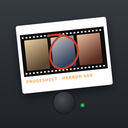
 Proofsheet
A darkroom you rock like a tray
When a roll is ready, Proofsheet opens a darkroom with a red safelight and a tray. Tilt or rock your phone like a tray of developer and the prints rise one by one. If you prefer no motion, tap Develop. The reveal takes about fifteen to twenty seconds.
Coming soon to iPhone
What happens in the darkroom?
The screen turns to a dark room lit by a red safelight, with a tray. The app prompts you to rock the tray. As the phone tilts, the prints come up. At the end, the proof sheet slides out with a red circle already on one frame.
The reveal is made to be recorded, because it is the moment friends want to watch.
Why a red screen?
A safelight in a real darkroom gives only light that photographic paper barely reacts to, so a printer can see the trays without spoiling the paper. The app borrows that look. It also lowers the screen brightness during the reveal and restores it afterward, which keeps the prints glowing in the dark and keeps your eyes comfortable in a dim room.
When does a roll develop?
You choose when you set up the roll: when it ends, tomorrow at 09:00, on a day you pick or, with Pro, at a custom time. You can also develop now at any time. A local notification tells you when a roll is ready.
Can I skip the motion?
Yes. Tap Develop for a no-motion reveal. The prints come up on their own in about the same time, and nothing about the result changes. With Reduce Motion on in iOS, the reveal runs that way by default.
What about crew rolls?
Every phone in a crew roll develops at the shared time, so friends open their own darkrooms in the same minute. Many of them record it. Read about crew rolls.
Does the darkroom change my screen?
The darkroom screen is dark and red, and the app lowers the screen brightness during the reveal. If you would rather not move the phone, tap Develop instead.
What do I get after developing?
A proof sheet with your frames, plus prints you can save or share. Developed photos, sheets and reels are saved to your Photos library when you allow add-only access. See the proof sheet for the export options.
What is on screen during the reveal?
The darkroom is a full-screen red safelight with a tray seen from above. Around it you see a few clear elements.
- The roll name and look at the top, with a counter such as Frame 3 of 12.
- The hint Rock the tray, with a tilt symbol.
- A development meter that fills as you rock.
- A Develop button at the bottom for hands-free reveals.
- A Skip to sheet link, if you would rather go straight to the result.
How does rocking work?
The app reads the tilt of your phone from its motion sensors. Rocking the phone advances development, and a bigger or longer rock moves it faster. Each print rises out of blank paper, shifts from a warm tint to a neutral one and slides to a drying line at the top.
What if my phone is slower than the animation?
The progress is real. If the processing of a frame takes longer than the animation, the last print waits with a Fixing label until the frame is truly finished. Then the screen shows Hanging to dry. The app never fakes a finish.
Does it work with Reduce Motion?
Yes. When Reduce Motion is on in iOS, the reveal runs hands-free. Tapping Develop does the same for anyone who does not want to move the phone.
Can I record the reveal?
A hint on the first visit suggests the iOS screen recording in Control Center. The app does not record anything itself, which is why it never asks for the microphone. Rock the tray with your other hand and start the recording first.
Where do the developed photos go?
They are saved to your Photos library, using add-only access. If you have not allowed that, the app asks the first time. If you decline, the proof sheet still works and a banner offers a shortcut to Settings.
What if something goes wrong?
If a frame does not process, the app says so and offers Try again, and the raw frame is kept until it succeeds. If the phone is short of space, a warning tells you how many megabytes to free before you retry. Nothing is lost in either case.
Honest limits
The look was fixed when you loaded the roll, so you cannot swap it in the darkroom. Develop now before the planned time discards the unshot frames.
Who is the darkroom for?
It suits anyone who likes a small ritual after a roll: people who shot a party and want to watch it come up with friends, people who finish a week roll on Sunday evening and people who like a pause before the pictures. If you prefer to skip it, Skip to sheet jumps ahead while frames keep processing in the background.
Frequently asked questions
Do I have to rock the phone?
No. You can tap Develop instead.
Can I develop before the planned time?
Yes. Develop now is always available.
How long does the reveal take?
Around fifteen to twenty seconds.
Is the darkroom notification local?
Yes. Reminders are scheduled on your iPhone, and you can switch each off in Settings.
Does the darkroom work with Reduce Motion?
Yes. With Reduce Motion on, the reveal runs on its own, and Develop is always available.
Why does the screen say Fixing?
It means the last frame is still processing. The label stays until the frame is done.
Keep exploring
 Film Camera App for iPhoneSmall viewfinder, thumb-wheel wind-on and a finite roll.
 Crew RollsA ticket, the same look on every phone and one crew sheet.How Film Is DevelopedThe steps behind the wait, and why the reveal is part of the fun.Week Roll24 frames through the week, one sheet on your day.What Is a Contact Sheet? Proof Sheets ExplainedOne page, every frame, and a grease pencil for favorites.